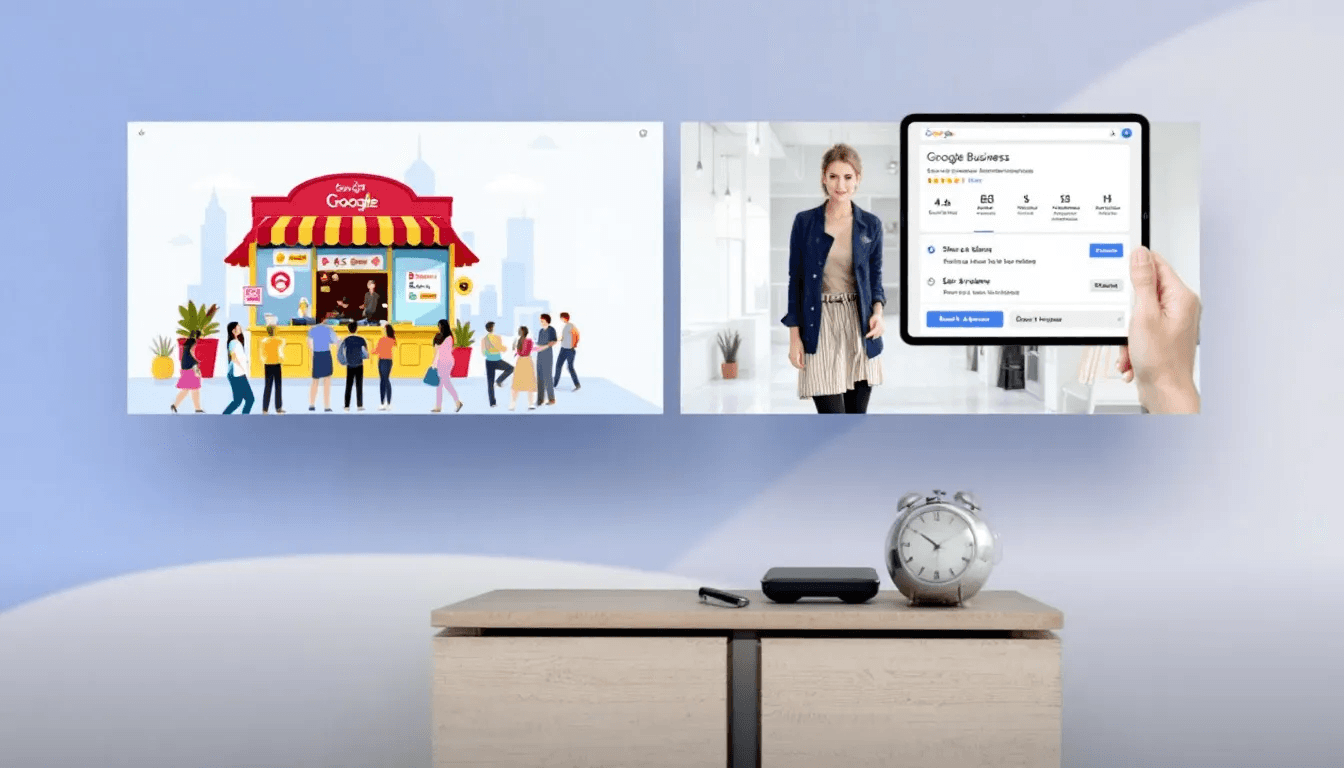
Here is how to set up Google Business Profile for your business: go to business.google.com/add, sign in with a Google Account and follow the prompts: business name, category, address or service areas, phone number and website. Then verify your business using the method Google offers you. It is free, and most of it takes under an hour.
For many local services, the profile is the most visible part of their online presence. This step-by-step guide covers who is eligible, each stage of the set-up, what to expect from verification, what to complete once you are live, and how Google decides which profiles to show on the map.
Check Your Business Is Eligible
Before you start, check that your business qualifies. Google's guidelines for representing your business set the rules, and a profile that breaks them can be suspended later.
Business eligibility comes down to where and how you meet customers. You need either an address that is staffed during your business hours and that customers can visit, or a service area where you travel to customer locations. A virtual office, or an address you do not staff, does not qualify.
You will also need a Google Account. You can use an existing Google Account or create a new business account, and Google lets you link a company email address to it so the profile is not tied to someone's personal Gmail.
How to Set Up Google Business Profile, Step by Step
The set-up screens change from time to time, but the information Google asks for stays the same. Have it ready before you start.
Step 1: Sign In and Add Your Business
Go to business.google.com/add, sign in and select Add your business to Google. Google checks whether a listing for your business already exists. If one does, claim it rather than creating a second, because duplicate listings confuse customers and Google alike.
Step 2: Enter Your Name and Category
Your business name should be your real-world name, as it appears on your signage, website and stationery. Do not add a town or a service to it: Google's rules forbid keywords in the name, and it is a common reason for suspension.
Then choose your business category. This is the most important choice you make, because Google uses it to decide which searches your profile is eligible for. Pick the most specific business category that describes your core business. You can add more later, but Google asks you to use the fewest categories that describe what you do.
Step 3: Add Your Address or Service Areas
If customers come to you, enter your address and check the pin on the map. If you travel to customers and do not serve anyone at your premises, leave your address hidden and set the areas you cover instead. Google gives the example of a plumber working from home, who should clear the address from the profile.
You can add up to 20 service areas by town, city or postcode. Google says a service area should not usually extend beyond about two hours' drive from where you are based.
Step 4: Add Your Contact Details
Add a phone number that is answered during your stated hours, and your website address. Use the same name, address and phone number here as on your website, so both describe the same business.
Step 5: Verify Your Business
Google then asks you to prove you run the business. Your profile will not show fully on Search and Maps until verification is complete. The next section covers what to expect.
If Your Business Is Already on Google Maps
A business listing can exist before you have claimed it, because Google creates some from public information. Find your business on the map, select Claim this business, then Manage now, and complete verification. If someone else already controls a verified profile for your business, you can request ownership from the current owner instead.
Verifying Your Business: What to Expect
Google decides which verification methods you are offered, and you cannot choose outside them. The options depend on your business type, location, opening hours and what Google already knows about you. Google's verification guide lists them all.
Phone or text: a code sent to your business number.
Email: a link sent to an address shown on the verification screen.
Video recording or live video call: you show your location, equipment or signage. Google recommends the video option where it is offered.
Postcard: a code posted to your address. Google says most codes arrive within 14 days.
While you wait for a postcard, do not edit your name, address or category, and do not request a new code. Either makes the code in the post invalid. After you submit, Google says reviews can take up to five working days.
Some businesses get instant verification. Google says this can happen when you have already verified your website in Google Search Console, or when you use bulk verification for a group of locations.
Complete Your Profile After Verification
A verified profile with only a name and address is a weak one, and it gives you little chance to attract new customers. Google says it matches profiles to searches using the information you give it, so every section you complete gives it more to work with.
Write Your Business Description
Your description appears in the 'From the business' section. Google's rules limit it to 750 characters and do not allow links. Say what you do, who you do it for and where, in plain language. Leave out prices and promotions, which Google says belong elsewhere.
Set Your Opening Hours
Add your regular hours, then keep them right. Add special hours for bank holidays and closures, because a customer who turns up to a locked door tends to leave a review about it. If you offer set times for different services, such as deliveries or appointments, Google lets you add those as extra hours of operation.
Add Photos
Post photos of your work, your premises, your vehicles and your team. Real photos help people choose you, strengthen your online presence and show Google your profile is active. Avoid stock images, which tell a customer nothing about your business.
Ask for Reviews and Reply to Them
Customer reviews affect both who picks you and where you appear. Google's tips to get more reviews suggest asking customers soon after the job, with a direct link from your profile. Replies are one of the few places you interact with customers in public, so reply to every review, good and bad: a calm, specific reply to a complaint often does more for you than a string of positive reviews.
Google prohibits offering anything in exchange for reviews, including discounts or free work. Doing so is treated as fake engagement and can remove your reviews or your profile.
How Business Profiles Rank in Google Maps
Google says local results are mainly based on relevance, distance and prominence. You control relevance through your category and profile details. Distance is out of your hands, and prominence builds over time from reviews and links to your website. Google's guide to local ranking explains each factor.
Category matters more than most people expect. We have measured a client missing from the map results for one of its services at every point we tested, including a few yards from its own door, because none of its categories covered that service. Listing the service on the profile did not fix it. The category did.
Your website supports your profile too. Link it from the profile, and make sure the site describes the same services and areas. A clear site with pages for each service gives Google more reason to trust the listing. Our guide to why a website is not showing on Google covers the website side.
Keeping Your Profile Up to Date
Setting up the profile is the start. Keep your business information current, reply to new reviews, add photos as you complete work, and use posts to share updates, offers and events.
Owners and Managers
A profile can have several owners but only one primary owner, and managers can do most day-to-day work without full control. Keep the primary owner as someone inside your business. If a web designer or agency manages your profile, give them manager access rather than ownership, so you can manage profile ownership yourself and manage access for others when you choose to.
Through the Business Profile Manager, businesses with ten or more locations can use bulk location management to verify and update them together, rather than one profile at a time.
Reading the Performance Data
The Performance section shows how people found your profile and what they did: searches, views, calls, website clicks and direction requests. It is useful for spotting trends, with two cautions from our own reporting.
First, the numbers keep filling in for nine or more days after a month ends, so a month read early looks worse than it was. Second, calls count taps on the call button, not phone calls. On one client's profile, Google recorded 13 call taps in a month when their own phone system logged 42 calls. Treat the figures as a trend, not a count of enquiries.
You can do everything in this guide yourself. Where it takes time is the work that follows: choosing the right categories, keeping the profile active, and building the reviews and website that lift your position on the map.
That is the work our Google Business Profile optimisation service covers. For AD Locksmithing, a locksmith in Newcastle, map impressions on the profile went from 38 to 263 and calls from the profile from 67 to 264 over a 2023-24 campaign that included the website and SEO work alongside the profile.
Frequently Asked Questions
Callum Robley
Founder & Lead Developer, Tea Powered Projects
Callum is a full-stack developer and the founder of Tea Powered Projects, a web design, development, and hosting company based in Nottingham, UK. With over 15 years of industry experience, he specialises in building reliable, scalable digital solutions for businesses of all sizes.